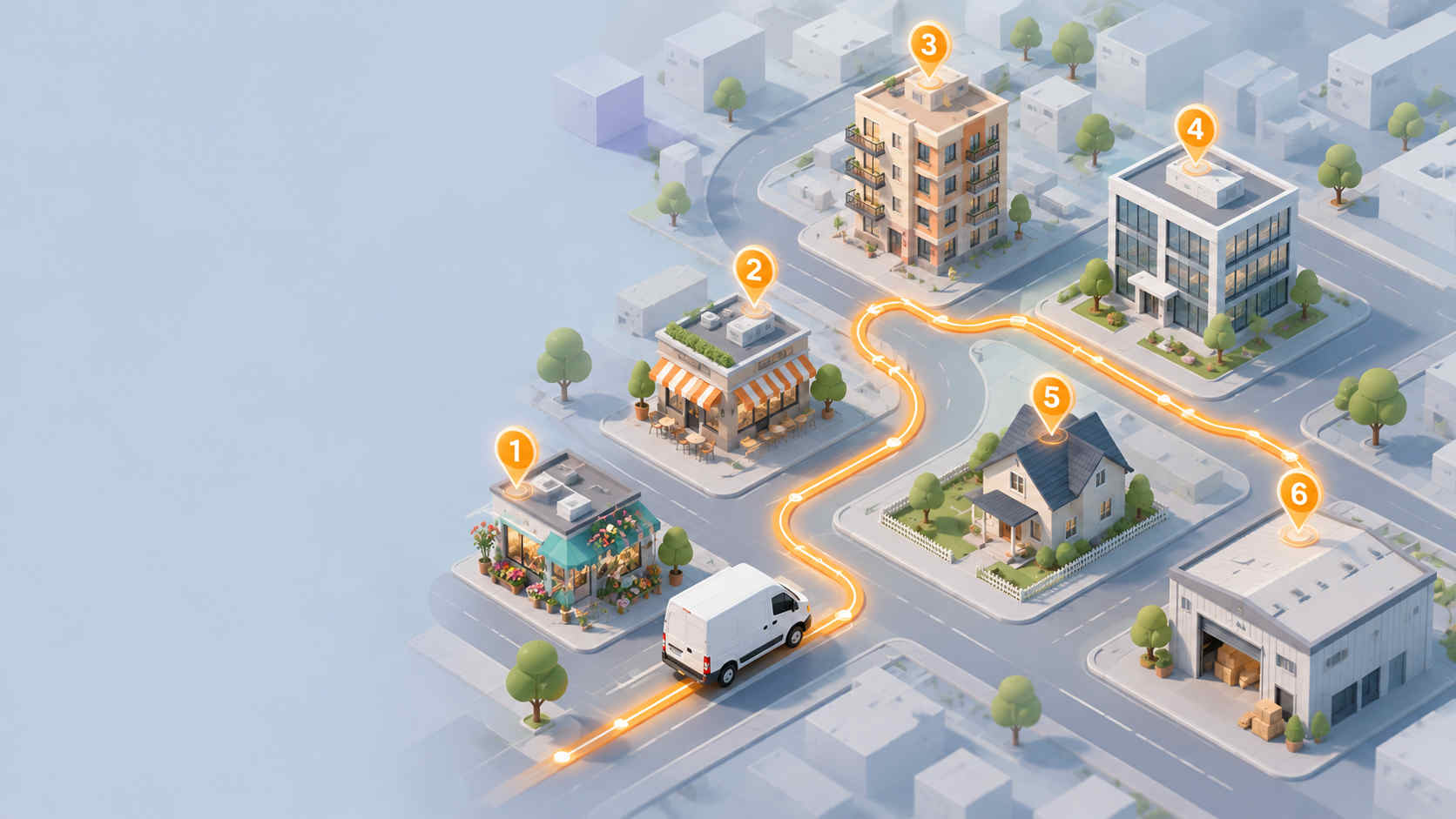
It’s 7 a.m., you’ve got fourteen drops to make before lunch, and the addresses are sitting in a text message from your dispatcher. You open Google Maps out of habit, start pasting them in, and hit a wall around the tenth stop. Apple Maps quits not far behind at fourteen. So you do what a lot of drivers still do in 2026: you switch to the MapQuest Route Planner, because it’s free and it’ll actually take the whole list.
That instinct is a good one. The MapQuest Route Planner has quietly outlasted a lot of flashier tools, and it remains one of the most capable free ways to build a multi-stop route in a browser. It holds far more stops on a single trip than the mapping apps most people reach for first, and it does the one thing those apps refuse to do properly. It puts your stops in a smarter order instead of driving them the way you typed them.
Here’s the problem, though. Hardly anyone uses the MapQuest Route Planner to anything near its potential. Most people punch in three or four addresses, skip straight past the optimize toggle, and set off driving a route that zig-zags across town for no reason. The tool is capable of a lot more than that, and getting the extra out of it takes about two minutes of knowing where to click.
This walkthrough covers all of it: exactly how to plan a route on MapQuest across desktop, Android, and iPhone, how to load a long list of stops without retyping every line, how to get MapQuest driving directions that come back in the fastest order rather than a random one, and how to fix the small snags that trip people up. Then we’ll look honestly at where MapQuest starts to strain, how it compares against a modern free planner, and what makes sense once your days get bigger than one driver and a tidy list.
Key takeaways
- MapQuest Route Planner supports up to 26 stops per route, more than Google Maps (about 10) and Apple Maps (about 14), making it a solid free choice for single-driver runs.
- Three ways to load stops: type them line by line, paste a list, or import a CSV/XLS/XLSX. Import is best once you’re past five stops.
- The optimize toggle is the whole game. Ticking “Let us re-order stops” is what turns a list into a real route. Most drivers miss it entirely.
- MapQuest keeps your first and last stop fixed when it reorders. Turn on Round Trip if you need to loop back to your start point.
- The limits are real: no multi-driver support, no delivery time windows, no live tracking, no proof of delivery, and a hard 26-stop ceiling per route.
- When you outgrow MapQuest, Bodha’s free route planner picks up where it leaves off: up to 30 stops per route across unlimited routes, spreadsheet import, vehicle profiles, and no signup required.
What the Map Quest Route Planner actually is
Strip away the history and the branding, and the Map Quest Route Planner is a free online trip planner that turns a pile of addresses into ordered, turn-by-turn driving directions. You feed it your stops, it plots each one on the map, and it hands back the distance and estimated drive time for the whole run, with the option to reshuffle everything into the most efficient sequence before you leave.
The number that makes it worth your attention is the stop limit. A single MapQuest route holds up to 26 stops on the free planner. Set that against roughly 10 stops in Google Maps and around 14 in Apple Maps, and you can see why couriers, field technicians, sales reps, and road-trippers keep coming back to it. Twenty-six stops covers a genuinely busy morning without forcing you to split the day into pieces.
Around that core, MapQuest gives you a useful spread of features. There’s live traffic feeding into your MapQuest driving directions, so the route accounts for what the roads are actually doing. There are route preferences for avoiding tolls, highways, ferries, and unpaved roads, which matters more than people expect the moment a toll road or a low bridge sits between you and a stop. There’s automatic stop reordering, the part that turns a list into a real route. And for U.S. drivers, there are fuel-cost estimates that give you a rough sense of what a run will cost before you turn the key.
All of it works two ways. You get the full planner in any web browser on a desktop or laptop, and you get the MapQuest route planner app on both Android and iOS. A route you build on one device carries over to the other, so you can plan at a screen where a long list is easy to manage and then navigate from the phone in the cab. For a free multi-stop route planner, that’s a genuinely solid feature set, and the rest of this guide is about squeezing every bit of value out of it.
How to plan a route on MapQuest: step by step
The core workflow is the same on every platform: add your stops, put them in the right order, then navigate. What changes is where you tap or click. Here’s the numbered walkthrough for each of the three places you’ll build a MapQuest route.
On desktop (mapquest.com)
Desktop is where you should build any route with more than a handful of stops. A real keyboard and a full screen make short work of a long list, and every input method and setting is easier to reach here than on the phone.
Step 1: Open the Route Planner.
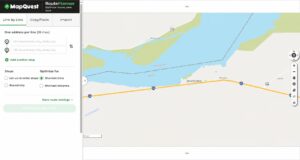
Head to mapquest.com/routeplanner in your browser. This is the dedicated Route Planner screen, not the plain map search box. The two look similar but behave completely differently, so make sure you’re on the right one before you start adding addresses.
Step 2: Choose your input method.
Along the top of the planner you’ll see three tabs: Line-by-Line, Copy/Paste, and Import. Pick the one that matches where your stops currently live. Typing them in is fine for a handful of addresses. Pasting is fastest if you’ve already got a list in an email or a note. Import is the move for a long list or anything with structured detail attached to each address.
Step 3: Add your stops.
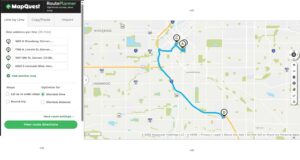
If you’re typing line by line, enter each address or business name and pick the exact match from MapQuest’s autocomplete rather than trusting a half-typed guess. Press Enter or click Add another stop between each one. If you’re pasting, drop the whole block into the Copy/Paste box with one address per line, like this:
2001 Blake St, Denver, CO 80205
1555 Blake St, Denver, CO 80202
1000 Chopper Cir, Denver, CO 80204
Then click Get Directions and View Route Directions. If you’re importing, upload a CSV, XLS, or XLSX file with your data in separate columns: Street, City, State, Zip, then optional Country and Notes. Whichever method you use, the cap is 26 stops per route, and A, B, C pins will drop onto the map as you build the list.
One habit here saves more headaches than any other: always include the city and ZIP code with every address. “2001 Blake St, Denver, CO 80205” leaves MapQuest no room to guess between five Blake Streets in five different states.
Step 4: Set your route options.
Before you optimize, open Options (sometimes labelled More route settings) and set the avoidances you need: tolls, highways, ferries, unpaved roads. These change how the entire route gets built, so set them now rather than after.
Step 5: Optimize the stop order.
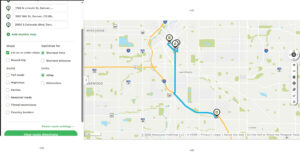
This is the step nearly everyone skips, and it’s the whole reason to use a planner instead of a map. Tick the box marked “Let us re-order stops” and choose either Shortest time or Shortest distance. In a single click MapQuest reworks the middle of your route into a far tighter run than the order you happened to enter. Two things to remember: the reordering never touches your first or last stop (they stay fixed where you put them), and if you need to loop back to your start, switch on Round Trip before you optimize.
For hands-on control, hover over any stop in the left-hand panel and a drag handle appears. Grab it and drag stops up or down to arrange them yourself. That’s useful when you know something the software doesn’t, like a customer who’s only in after nine, or a street that’s a nightmare at school run.
Step 6: Save, print, or share.
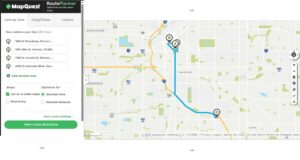
You’ve got three ways to take the finished route with you. Save it (needs you logged into a MapQuest account, but lets you pull it up instantly next time). Print a directions sheet, choosing either Directions & Map or Directions List Only for a lean sheet that lives on the dash. Or share it, copying a short URL or sending it straight to a phone by email or SMS so it opens in the app.
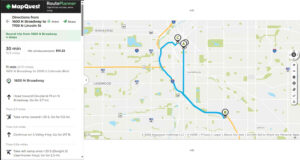
That reordering step in Step 5 is worth pausing on, because it’s the whole reason a route planner beats a map. Driving stops in the wrong sequence doesn’t just feel inefficient. It quietly stacks up extra miles, burns fuel, and adds trips back and forth across town that never needed to happen. Over a week those wrong-order miles turn into real money and real hours. Our breakdown of what route optimization actually does digs into where those savings come from and why the order of stops matters far more than most drivers assume.
If spreadsheets are already how your working day lives, that’s worth building your whole workflow around rather than fighting. A planner that imports your stop list from a spreadsheet and sequences the lot in a single pass will save you more time than any other feature on a comparison chart.
On Android (MapQuest app)
The Android app is where you’ll actually drive the route. For very long lists it’s easier to prep on desktop and send it across, but the app is fully capable of building a route from scratch when you have to.
Step 1: Install and open the app.
Grab the MapQuest app from Google Play and open it.
Step 2: Add your first stop.
Tap Search MapQuest at the top of the screen, type in an address, business, or place, and select the correct suggestion from the list that appears.
Step 3: Add more stops.
Directly beneath the selected address you’ll see Add Stop. Tap it to append the next one, and keep going up to the 26-stop cap. Each stop stacks as A, B, C on the map as you add it.
Step 4: Reorder the stops.
Tap the reorder icon, the three horizontal lines beside any stop, and drag it up or down. The route recalculates as you rearrange.
Step 5: Set your route preferences.
Open the menu (the three-line icon at the top), tap Settings, then Route Preferences. Toggle avoid highways, avoid tolls, and any other defaults you want applied to every trip.
Step 6: Get directions and start navigation.
Tap Get Directions or View Routes, compare any alternate routes MapQuest offers, and hit Start Navigation for turn-by-turn voice guidance. You can run the whole thing through Android Auto on the dash for a hands-free experience.
A tip that saves time on Android: save the addresses you hit regularly to Favorites. A recurring customer or your own depot shouldn’t need retyping every morning. And when an address simply won’t resolve on the small screen, stop fighting it. Build the route on desktop, share it across, and let it open in the app ready to drive.
On iPhone (MapQuest app)
The iOS flow lines up closely with Android, which makes switching between devices painless.
Step 1: Install and open the app.
Grab the MapQuest app from the App Store and open it.
Step 2: Add your first stop.
Tap Search MapQuest, enter your first address, and select it from the results.
Step 3: Add more stops.
Tap Add Stop underneath the selected address and repeat until your route is complete, again up to 26 stops with the familiar A, B, C pins on the map.
Step 4: Reorder the stops.
Use the reorder handle (the same three horizontal lines) to drag each stop into the sequence you want. The app recalculates as you move things.
Step 5: Set your route preferences.
Open the menu at the top-left, tap Settings, then Route Preferences. Toggle the avoidances (highways, tolls, unpaved roads) and voice guidance settings you want as defaults.
Step 6: Get directions and start navigation.
Tap Get Directions, compare the suggested routes, and Start Navigation. If you drive a compatible vehicle, MapQuest supports CarPlay, so you get hands-free turn-by-turn without ever picking the phone up.
Same tip applies on iOS: save your regular stops to Favorites, and if an address is being difficult on the small screen, build the route on desktop and share it across. Every second saved at 7 a.m. is a second you’re not losing on the road.
When MapQuest fights back: 9 common issues and how to fix them
Issue 1: An address won’t geocode.
You type it in and MapQuest either can’t find it or drops the pin in obviously the wrong place.
Fix: Add more detail rather than less. Include the ZIP code and state, or search by the business name instead of the street address. If that fails, try alternate wording (“St” instead of “Street”) or a nearby intersection. Rural addresses and brand-new builds the map hasn’t caught up with are the usual culprits.
Issue 2: Your spreadsheet import fails or scrambles.
A CSV upload throws an error or drops rows into the wrong columns.
Fix: Formatting is almost always the cause. Check that your columns are in the exact order MapQuest expects (Street, City, State, Zip) and nothing is crammed into a single cell. Strip out stray commas sitting inside a field (or wrap those fields in quotes), save the file as CSV UTF-8 rather than a native Excel format, and always check the on-screen preview before committing.
Issue 3: You’ve got more than 26 stops.
This is a hard ceiling, and no toggle lifts it.
Fix: On MapQuest, you either split the list into geographic clusters (build a separate route for each area) or you move to a tool built for the volume. Splitting works for the occasional long day; it becomes a daily chore if runs regularly cross the ceiling. This is where a free planner like Bodha, which optimizes up to 30 stops per route across unlimited routes, quietly earns its keep for anyone consistently running long days.
Issue 4: MapQuest won’t reorder your first or last stop.
You’ve ticked the optimize box and something obvious in the sequence isn’t moving.
Fix: That’s by design. MapQuest deliberately locks your start and end points in place so a driver starts at the depot and finishes at home (or wherever you set). If you need to end back where you started, switch on Round Trip before you optimize. And if the very first or last stop genuinely needs to move, take it out of the list and re-add it in the middle so the optimizer can work on it.
Issue 5: There’s no way to set delivery time windows.
A customer only accepts drop-offs between 2 and 4 p.m., and MapQuest doesn’t have a field for it.
Fix: Manual, unfortunately. You hold the constraint in your head, plan around it, and adjust the optimized order by dragging that stop into the right slot yourself. This is fine on a five-stop day and painful on a fifteen-stop one, which is why time-window support becomes a real reason to upgrade once you’re managing appointments.
Issue 6: No live driver tracking.
Once a driver leaves the depot, you can’t see where they are on a map.
Fix: Run a separate GPS tracking app alongside MapQuest, or accept that you’ll be phoning around for updates. The proper answer is a planner that combines routing and tracking in one place, which is one of the biggest gaps between a mapping tool and delivery software.
Issue 7: No multi-driver support.
MapQuest is built for one screen, one driver. There’s no way to plan across a team or balance stops between vans.
Fix: Build every driver’s route separately and manage the overall day in a spreadsheet outside MapQuest. It works with two drivers; it stops working somewhere around three or four. Beyond that you need software with driver assignment built in.
Issue 8: Sharing a route doesn’t always work cleanly.
You send a route by SMS or email and it doesn’t open properly on the other end.
Fix: Skip the built-in share options and go manual. Copy the route URL and paste it straight into a message yourself. It’s a few extra seconds and it removes the guesswork.
Issue 9: You’re heading into a dead zone.
MapQuest leans on a connection, and offline support is thin.
Fix: Plan the whole route before you set off, and take a printed directions sheet or screenshots as backup. It’s low-tech, but a paper sheet on the dash has never lost signal.
Work through those and you’ll clear most of what trips people up on MapQuest. What you’ll notice, though, is a pattern. Nearly every fix above is you doing manual work to paper over something the tool doesn’t handle on its own. On a quiet day that’s fine. The moment your operation grows, the manual overhead is exactly what stops scaling.
Why the MapQuest Route Planner is worth using
Before we get to the upgrade path, it’s only fair to be clear about where MapQuest genuinely earns its place, because for the right driver it’s hard to beat at its price, which is nothing.
It asks for no subscription and puts no premium wall around the essentials. Full multi-stop planning, on both desktop and mobile, costs you nothing, which is a real distinction in a market where most tools tease you with a handful of free stops and then ask for a card. The interface is plain and unintimidating, with no real learning curve; if you can type an address, you can build a route, which matters enormously when you don’t have time to sit through a tutorial. Routes move cleanly between desktop and phone, so the natural rhythm of planning at a screen and navigating from the road just works. The optimization, while basic, is real. Letting MapQuest reorder your stops genuinely cuts drive time against setting off in entered order, and that saving is free every single day. And that 26-stop capacity quietly swallows a lot of real-world days that Google Maps and Apple Maps simply can’t hold.
Who uses the MapQuest Route Planner?
MapQuest ends up in the hands of a broader mix of people than you’d expect. Some are running businesses; some are just planning a road trip. What ties them together is the need to visit more than one place in a sensible order without paying for enterprise software.
Personal travellers and road-trippers.
The classic use case. Anyone planning a multi-city holiday, a day of errands across town, or a weekend visiting three or four family members finds MapQuest’s 26-stop capacity is far more than they need, and the free price tag makes it a no-brainer against paid alternatives.
Sales representatives.
Field sales reps working from a list of client visits are one of MapQuest’s most consistent user groups. A rep with eight to twelve calls a day gets real value from optimising the drive order in the morning, especially when territories cover a broad geographic patch. MapQuest is generous enough on stops and simple enough on setup to fit into the start of every working day without slowing it down.
Small delivery businesses.
Independent florists, one-van e-commerce shops, small bakeries running their own deliveries, and neighbourhood restaurants handling their own drop-offs all lean on MapQuest. These are the businesses where a proper fleet platform would be overkill and Google Maps’ stop limit is genuinely restrictive. MapQuest sits neatly in the middle.
Couriers and independent drivers.
Independent couriers picking up gig work, and small courier firms with one or two drivers, use MapQuest to plan a day’s route without a subscription. If your daily list stays under 26 stops, single-driver, and you don’t need proof of delivery or live tracking, MapQuest genuinely does the job. Beyond that, most couriers eventually move to something like our courier route planner that’s built around the specific rhythms of parcel work.
Field service technicians.
HVAC, plumbing, appliance repair, and pest control techs working a scheduled list of jobs use MapQuest to sequence the day’s appointments efficiently. It works well when the schedule is fixed in the morning and doesn’t change; it starts to strain when jobs get added or cancelled mid-day and there’s no way to reoptimise on the fly.
Contractors and mobile trades.
Building and trade contractors visiting multiple job sites, quoting jobs, or dropping materials off use MapQuest to plan the day. The desktop planner is particularly handy for prepping the week’s routes on a Sunday evening and syncing them across to the phone for the drive out.
The common thread across every one of these groups is the same: a single person, a predictable list, and stops that fit inside 26. Cross any of those lines regularly and MapQuest starts to feel less like a fit and more like a workaround, which is what the next section is about.
Why Bodha is the natural next step after MapQuest
There’s a clean line between “I need to map a route” and “I need to run deliveries,” and MapQuest lives firmly on the first side of it. It’s a mapping tool that happens to hold a few stops. A delivery operation needs the opposite: a tool built to run the day that happens to include a map. When your week starts looking like the checklist below, you’ve crossed that line, whether or not you’ve admitted it yet.
You’re routinely past 20 to 26 stops and tired of splitting runs. You’ve got more than one driver to coordinate and no single place to see them. Your customers expect an ETA and a heads-up text before you arrive, and you’ve got no way to send one. You need proof of delivery (a photo, a signature, a timestamp) to settle the disputes that eat your afternoons. And you want to see your drivers on a live map, not chase them by phone for a status.
This is exactly the gap Bodha’s free route planner was built to close, and it starts closing it before you pay a penny. On the single metric that matters most, it already goes further than MapQuest. It optimizes up to 30 stops per route across unlimited routes, free, with no ads and no signup to slow you down. Drop your stops in any order at all, whether you type them, paste a block, or import a spreadsheet, and Bodha builds the fastest sequence on real roads, then hands back an arrival time, a leg distance, and a drive time for every single stop, not just a total for the trip. One tap turns that into a clean printed route sheet for the dash.
A few things it does that MapQuest simply can’t. It shows you exactly what you saved against your original order, so the optimization isn’t a black box. It flags any address it can’t read the moment you import, so a bad row never quietly vanishes from the route. And it adjusts the whole plan to your vehicle profile, because a truck, a bike, and a car don’t take the same roads or cover them in the same time, and a planner that ignores that is guessing.
The part that really matters for a business that intends to grow is what happens after the free planner. Bodha’s free tool runs on the same engine as its full fleet platform, which means the day you need real-time driver tracking, automatic customer notifications, and proof of delivery, it’s already there waiting. Nothing to migrate, no data to rebuild, no new tool to learn from scratch. That’s the real difference between a mapping tool and delivery software: one hands you a route and wishes you luck, the other runs your entire day around it.
MapQuest Route Planner vs Google Maps vs Bodha: how they stack up
If you’re weighing whether to stay with MapQuest or move across, it helps to see the two tools laid out side by side on the things that matter most in a real working day.
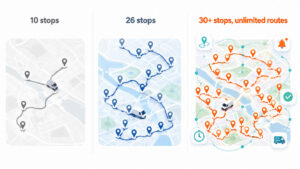
The pattern is pretty clear. On the free-planner side of the line, Bodha covers everything MapQuest does and adds the details that make a working day easier: more stops per route, unlimited routes, per-stop arrival times, and no signup wall. And on the other side of that same line, when your operation grows, Bodha extends into the fleet features MapQuest simply doesn’t offer at any price. It’s the difference between a tool that stops helping when you hit its ceiling and a tool that grows with you.
If you’d rather see how the leading route planners compare across the wider market before committing, we’ve put seven of them through their paces in a separate rundown that’s worth a read. And if your work is specifically parcel or courier delivery, this guide to planning a courier route with multiple stops gets into the details that matter for that trade.
A few habits that get more out of MapQuest
If you’re staying on MapQuest for now, and for plenty of drivers that’s the right call, a handful of small habits sharpen every route you build.
Always turn on automatic reordering. It’s the single biggest time saving the tool offers, and leaving it switched off throws that saving straight in the bin. Switch to import the moment you’re past five stops, because manual typing is where wrong pins and typos creep in, and one bad address can distort an entire route. Front-load every address with its city and ZIP so geocoding doesn’t send you on a mystery detour to the wrong side of the county. Test any address you’re unsure about on its own, before it goes into a big route, so a single problem stop doesn’t wreck the sequence around it. And keep this one in mind above all: MapQuest gives you drive time, not service time. It doesn’t know you’ll spend eight minutes at each door. Add a realistic allowance for every stop, plus a cushion for traffic, so the plan you build at 7 a.m. actually survives contact with the real day.
Get those habits in place and MapQuest will serve you well for as long as your operation fits inside its limits. And when it doesn’t, Bodha’s free planner is the easiest next step: 30 stops, unlimited routes, no signup, and the same engine your fleet software would run on later.
Frequently Asked Questions
The MapQuest Route Planner has earned its long run. For a road trip, a batch of errands, or a small single-driver delivery route, it’s free, familiar, and roomier than the mapping apps most people default to. Learn the optimize toggle and the import trick and you’ll have solid MapQuest driving directions in a couple of minutes flat.
Its limits are just as honest, though. It maps a route; it doesn’t run a delivery operation. The morning you cross 26 stops, add a second driver, or start fielding “where’s my order?” calls, you’ve asked a mapping tool to do a job it was never built for, and no amount of manual patching changes that.
When that morning comes, Bodha is the easiest next step, because there’s nothing to sign up for. Add your stops, hit optimize, and watch the route fall into the fastest order with an arrival time on every stop. Then decide for yourself whether you ever go back.
Plan your first optimized route with Bodha, free, no signup →