 Ruchita Purohit
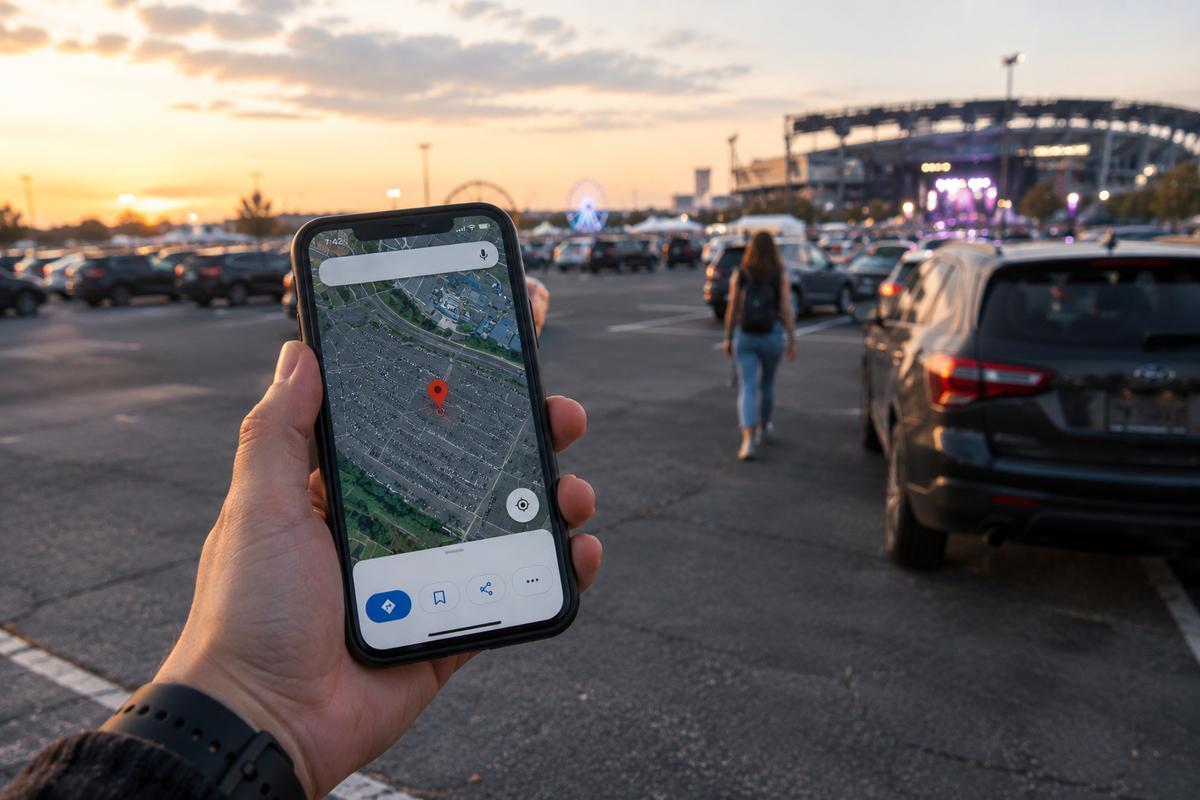
So you’re standing in a massive parking lot at a music festival. There’s no address. No landmark. And in about four hours, you need to somehow walk back to this exact spot in the dark after three encores and questionable nachos.
This is the moment most people wish they’d learned how to drop a pin on Google Maps.
A location pin is basically a digital thumbtack. You tap a spot on the map, a red marker shows up, and Google gives you the coordinates, the closest street address, and buttons to save it, share it, or navigate back to it whenever you want. Pretty simple. But weirdly, most people have no idea this feature even exists.
Google Maps gets over 2 billion users every month. The vast majority just type an address, follow the blue line, and close the app. That’s fine for getting to a restaurant. But the second you need to remember a random spot, meet someone at a place with no address, or tell roadside assistance exactly where your car broke down? You need a pin. And if you’re already running into Google Maps’ 10 stop limit while planning routes, stick around. We’ll cover that too.
Here’s everything you need to know about dropping, saving, sharing, and actually using pins on Google Maps. Starting with your phone, because that’s where you’ll use this 90% of the time.
How to Drop a Pin on Google Maps on Your Phone (Android and iPhone)
The steps are basically the same on Android and iPhone. If you’ve ever asked yourself “how do I drop a pin on Google Maps on my phone?” the answer is embarrassingly simple. It takes about three seconds.
Open Google Maps, That’s it. Just open the app. Make sure your location services are turned on so the map actually knows where you are.
Find the spot you want to pin. Scroll around the map, zoom in, or search for a nearby area to get close. The more you zoom in, the more precise your pin will be. This matters if you’re trying to mark a specific door or parking spot rather than a general area.
Press and hold. Put your finger on the exact spot and hold it for a second or two. You’ll feel a little vibration on most phones, and a red pin pops up right where your finger was.
Check what showed up. A little info card slides up from the bottom. It’ll show you the nearest address (if there is one), the GPS coordinates, and quick buttons for Directions, Save, Share, and Label.
Do something with it. Tap Save if you want to keep it. Tap Share to send it to someone. Tap Directions if you need to navigate there right now.
That’s literally it. You just learned how to drop a pin in Google Maps. The whole thing is faster than ordering a coffee.
One thing worth mentioning. If you’re dropping pins on a bunch of delivery or errand stops and then trying to figure out the fastest order to hit them all, a free multi stop route planner will save you a ton of time versus rearranging them by hand.
What if the pin landed in the wrong spot?
Don’t stress. Tap the red pin, then drag it wherever it actually needs to go. Zoom in first for better accuracy. You can nudge it right onto a specific building entrance or loading dock if you need to.
How to Pin My Location on Google Maps (Marking Where You Are Right Now)
Sometimes you don’t need to pin some faraway place. You need to pin exactly where you’re standing. Right now.
Maybe you parked at the airport and you already know you won’t remember which level. Maybe you found an incredible fishing spot off a dirt road in the middle of nowhere. Or maybe your car just died on a highway and you need to text someone your exact location instead of saying “I think I’m near an exit?”
Here’s how to pin my location on Google Maps. It’s three steps.
Open the app. See that blue dot? That’s you. Tap and hold on it (or right next to it). Red pin drops. Done.
The info card shows your GPS coordinates and the nearest address. Hit Share, pick whatever app you want, and the other person gets a link that opens the exact spot in their own Google Maps.
This is genuinely useful in emergencies. Trying to describe where you are over the phone while someone’s looking for you is painful. “I’m near the big tree next to the parking lot” helps nobody. A location pin with coordinates is exact. Emergency services, tow trucks, or your friend who’s circling the block for the fifth time can get to you without playing 20 questions.
Delivery drivers use this trick constantly, by the way. When they show up to an address and the actual drop off point is nothing like what the map shows, pinning the real location saves everyone time the next visit. If you drive for a living and deal with this kind of thing daily, a route planner app built for delivery drivers handles that mess at scale.
How Do You Drop a Pin on Google Maps From a Computer?
Desktop works a little differently but honestly it’s even easier.
Go to maps.google.com and sign in:
Signing into your Google account means any pin you save will show up on your phone too. Everything syncs.
Find your spot:
Scroll, zoom, or search. Same as on the phone.
Click once:
That’s the big difference. On your phone you long press. On desktop, just click. A small grey pin drops and an info box pops up at the bottom with coordinates and the nearest address.
Save or get directions:
Click the info box to expand it. Save to a list, copy coordinates, or start navigation.
There’s also a second method that a lot of people don’t know about. Right click anywhere on the map. A menu pops up with “What’s here?” Click it. Google drops a pin and shows you the exact latitude and longitude of that point. Super handy when you need coordinates for a place that doesn’t have an address at all. Construction sites, rural properties, random fields.
So now you know how do I drop a pin on Google Maps from a computer. If you’re planning delivery routes that involve dozens of locations like these, copying coordinates from pins into a spreadsheet and importing them into a route planner beats pinning each one individually by a mile.
How to Drop a Pin in Google Maps and Actually Keep It
Here’s where most people mess up. A dropped pin is temporary. If you search for something new, close the app, or drop a different pin, the first one just… vanishes. It was never saved.
To keep a location pin, you need to actively save it before you move on.
On your phone:
Drop the pin. Tap the info card at the bottom. Tap Save. Pick a list like Favorites, Starred Places, or Want to Go. Or create your own custom list. You can also label the pin with something useful like “Apartment building side entrance” or “Good parking near the venue.”
On desktop:
Click the spot. Click the info bar. Click Save. Choose your list.
That’s it. Your pin sticks around forever now and shows up on every device where you’re signed into the same Google account.
Use custom lists or you'll hate yourself later
Google Maps lets you create as many lists as you want, and this is where the feature gets really powerful. Instead of throwing everything into Favorites and scrolling through a hundred random pins, create lists that actually mean something.
“Client locations” if you’re in sales. “Delivery spots with bad addresses” if you’re a driver. “Portland trip” if you’re planning a vacation. “Parking spots I always forget” if you’re, well, human.
Each list holds about 500 pins. Every saved pin syncs automatically. And if you’ve got more than 20 locations to work with, you can map addresses from a spreadsheet using a route planner instead of pinning them one at a time. Way faster.
Sharing a Dropped Pin Near Me with Someone Else
One of the biggest reasons people learn how to drop a pin is to share a location. You need someone to get to a place that doesn’t have a clean address? Drop a pin and send it. Done. No confusion.
On your phone:
Drop your pin (or tap a saved one). Tap the info card. Tap Share. Pick WhatsApp, iMessage, email, Telegram, whatever. The other person gets a link. They tap it. Google Maps opens and shows them the exact spot with a red pin and a “Directions” button. No back and forth. No “wait, which side of the building?”
On desktop:
Click your pin. Click the Share icon. Copy the link or email it directly.
This is a lifesaver for delivery drivers and field service crews. New construction sites, rural drops, gated community back entrances, temporary event locations. None of these have addresses that show up cleanly in a map search. A dropped pin near me sent over text is ten times more reliable.
For businesses that need to share live driver locations with customers automatically (not just a static pin from five minutes ago), real time delivery tracking sends branded tracking links that update as the driver moves. That’s a different league from manually sharing pins, but if you’re doing any kind of delivery operation, it’s worth knowing it exists
Getting GPS Coordinates From a Dropped Pin
Not everyone drops pins just to save or share a place. Plenty of people do it purely to grab the latitude and longitude.
Real estate agents working with undeveloped lots. Surveyors. Delivery dispatchers handling locations with no street address. Event coordinators setting up pop up venues in parks. If you need exact coordinates, a dropped pin gives them to you instantly.
On your phone: Long press to drop the pin. The coordinates show up right on the info card below the “Dropped pin” label. Tap them to copy.
On desktop: Right click, select “What’s here?” Coordinates appear in the search bar and the info box. Click to copy.
Paste them into a text, a spreadsheet, a planning tool, wherever you need them. Logistics teams that work with hundreds of these daily usually skip the whole manual pinning process and import their full stop list from a spreadsheet instead. But for one off lookups, a dropped pin is the fastest way to get coordinates.
Editing and Deleting Pins
You don’t have to live with a bad pin.
Unsaved pin?
Just tap somewhere else on the map or hit the X on the info card. It disappears immediately because it was never saved to begin with.
Saved pin you don’t need anymore?
Open your saved lists (tap “You” or “Saved” in Google Maps). Find the pin. Tap it. Tap the bookmark icon and deselect the list. Gone.
Need to rename a saved pin?
Open it from your list. Tap the label to change it. You can also move it to a different list from the same screen.
Housekeeping tip: clean out your pin lists every few months. They get cluttered fast, and a disorganized list defeats the whole purpose of saving pins in the first place.
8 Times Dropping a Pin Saves the Day
Knowing how to drop a pin is one thing. Knowing when to use it is what actually makes it useful. Here are eight situations where a location pin is the fastest fix.
1. You parked somewhere massive: Airport. Stadium. Mall parking garage. Drop a pin before you walk away. Future you will be grateful.
2. You’re meeting someone: “Meet me at the park” is vague. A pin on the specific bench near the east entrance is not.
3. You’re delivering to a weird address: The map says the front door. The customer says the loading dock around back. Drop a pin on the actual spot so you (or the next driver) don’t waste 15 minutes next time. For teams dealing with this every day, last mile delivery software handles the full workflow from address import to proof of delivery.
4. You found a hidden gem: A trailhead. A quiet beach access. A hole in the wall restaurant with no sign. Pin it before you forget, because you will forget.
5. Your car broke down: You’re on a highway you don’t recognize. Drop a pin. Share it. Now the tow truck knows exactly where you are.
6. You’re scouting job sites: Sales reps, real estate agents, contractors. Pin every location during your visit so you don’t have to rely on memory or a half scribbled address.
7. You’re planning a trip: Drop pins on every restaurant, museum, and hotel you want to hit. Save them all in one list and you’ve basically built yourself a custom travel guide. For road trips with more than 10 stops, a free road trip planner with multiple stops will put them in the smartest driving order for you.
8. Your business is hard to find: Inside a mall. At the back of an industrial park. In a building with no signage. Share a dropped pin of your actual entrance in confirmation emails and watch the “I can’t find you” calls drop.
When Pins Stop Being Enough (The Delivery Problem)
For normal everyday use? Pins on Google Maps cover pretty much everything you need. Save a parking spot. Share a meetup point. Navigate to a tricky location. It works great.
But if you’re running any kind of delivery operation or managing field routes, you’ll hit the wall fast. And it’s a hard wall.
Google Maps caps you at 10 stops per route. You can’t import a list of addresses from a spreadsheet. There’s no optimization, so you have to drag every stop into the right order yourself. And there’s no way to split stops across multiple drivers, track who delivered what, or prove that a package actually got there.
For a solo driver with 8 stops? Google Maps is fine. But the minute you’ve got 20, 30, 50 stops in a day, or a team of drivers who all need routes at the same time, you’re burning hours on something software can handle in seconds.
This is the exact problem Bodha Fleet was built for.
You import your delivery addresses from a spreadsheet or API. Bodha Fleet’s optimizer figures out the fastest route sequence across your whole team. Stops get assigned to the right driver based on time windows, vehicle capacity, and schedules. Drivers navigate each leg using Google Maps, Waze, or Apple Maps. They don’t have to learn anything new.
Beyond route optimization, Bodha Fleet gives you real time GPS tracking so you can see where every driver is. Customers get automated SMS and email notifications with a branded tracking link. Drivers capture proof of delivery with photos and e-signatures right in the app. And route analytics show you on time rates, driver performance, and planned versus actual distances after every run.
Pricing starts at $29.99 per user per month with unlimited stops and proof of delivery. Notifications and live tracking come with Pro at $49.99. No per stop fees. No gotchas.
If your mornings currently involve dropping dozens of pins and manually arranging them into some kind of route, it’s worth seeing what happens when you let a route planner do that for you.
Frequently Asked Questions
How do I drop a pin on Google Maps and share it?
Open Google Maps, find your spot, and long press to place the red pin. Tap the info card at the bottom and hit Share. Pick whatever app you want to send it through. The other person gets a link that opens the exact location in their own Google Maps with directions ready to go.
Can I drop multiple pins at the same time?
Nope. Google Maps only allows one dropped pin at a time. You have to save each one to a list individually. If you need to work with a bunch of locations at once, Google My Maps supports up to 10,000 markers across multiple layers. And for route planning specifically, tools like Bodha let you import hundreds of stops from a spreadsheet and optimize them into the fastest route.
Why did my pin disappear?
Because you didn't save it. Dropped pins are temporary. Search for something new, close the app, or drop another pin and the old one is gone. Always tap Save before you navigate away.
How do I drop a pin at my current location?
Open Google Maps. See the blue dot? That's you. Tap and hold right on it or next to it. Red pin drops with your coordinates and nearest address. Save or share from there.
Is there a limit to how many pins I can save?
About 500 per list. You can make multiple lists, but people have reported issues once you get past 2,000 to 3,000 total saved locations. If you're managing that many, you probably need Google My Maps or a professional route planning tool designed for that volume.
Do saved pins work offline?
Yes, but only if you download the map area first while you still have internet. Once the offline map is saved, any pins inside that region will be available even without Wi-Fi or cell data.
How do I find a dropped pin near me?
If you saved it, go to your lists (tap "You" or "Saved" in Google Maps) and browse for it. If you didn't save it, it's gone. You'll need to drop a new one.
What's the difference between a dropped pin and a saved place?
A dropped pin is temporary. It disappears unless you save it. A saved place is permanent. It's tied to a business, address, or any spot you've added to one of your lists. Once you tap Save on a dropped pin, it becomes a saved place.