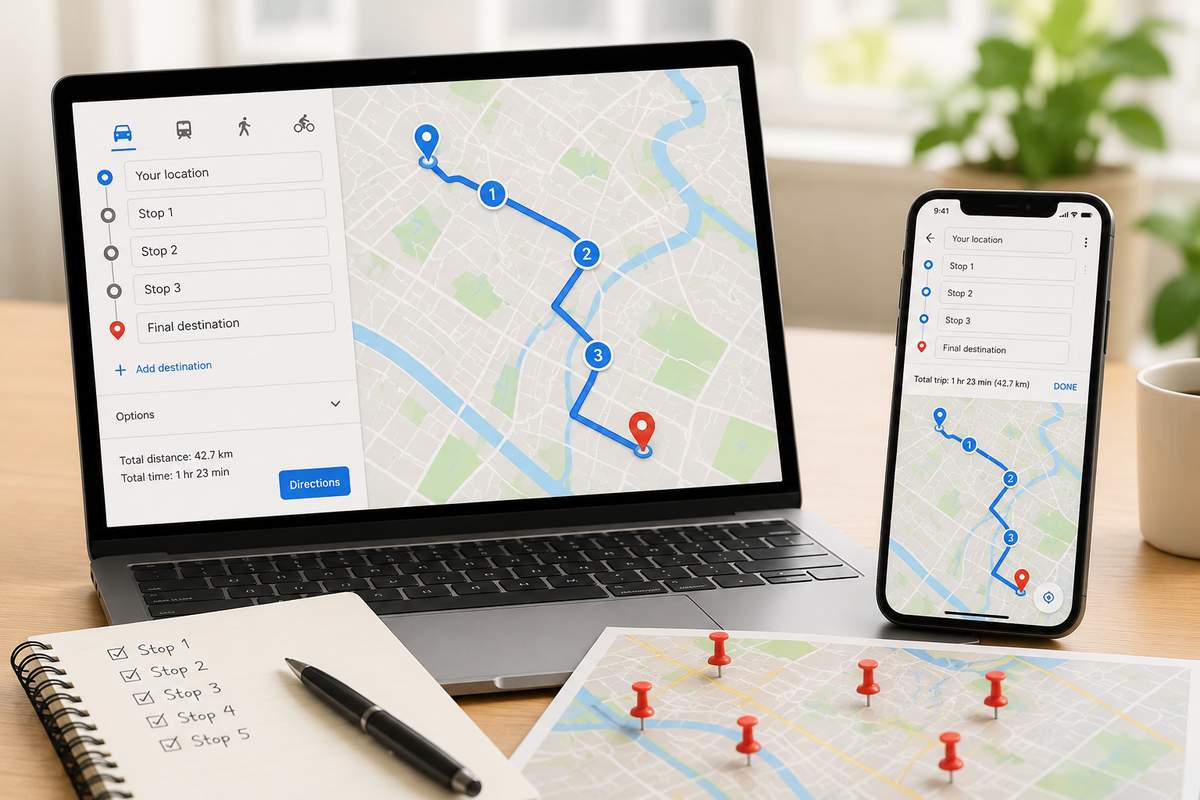
You have got fifteen deliveries, eight service calls, or a road trip with six cities on the list. You open Google Maps, start typing addresses, and immediately wonder: how do I add stops on Google Maps without losing my mind?
You are not alone. Millions of people search for this every single month. Google Maps is a fantastic tool for getting from one place to another, but the moment you need directions with multiple stops, things start to feel clunky. There is a hard cap on how many stops you can add, no way to automatically sort them into the fastest order, and no option to paste a list of addresses from a spreadsheet.
This guide walks you through every step of adding multiple stops on Google Maps, on both your phone and your computer. But it also does something the other guides do not. It shows you exactly where Google Maps falls short, and what to use instead when you need more than a basic route with multiple stops.
Whether you are a delivery driver juggling 30 drops a day, a sales rep visiting clients across town, or someone planning a Saturday errand run, you will walk away knowing the fastest way to plan your route.
Let’s get into it.
How Do I Add Stops on Google Maps? (Step by Step on Desktop)
Adding multiple stops on the desktop version of Google Maps is straightforward. Here is how to do it:
Step 1: Open Google Maps in your browser at maps.google.com.
Step 2: Click the Directions icon. It is the small arrow button near the search bar.
Step 3: Type your starting location into the first field. If you want to use your current location, leave it set to “Your location.”
Step 4: Enter your first destination in the field below.
Step 5: Look for the “Add destination” text below your destination field and click it. A new address field will appear.
Step 6: Keep adding destinations. Google Maps lets you enter up to 10 locations in total. That includes your starting point, so you really get 9 stops between where you begin and where you finish.
Step 7: Want to change the order? Click and drag any stop to move it higher or lower in the list.
That is it. You now have a route with multiple stops mapped out on Google Maps. Hit “Directions” and the app will calculate drive times and distances for each leg of the trip.
One thing to keep in mind: Google Maps will drive you through those stops in exactly the order you typed them. It will not rearrange them for you, even if a different order would save you 45 minutes. More on that later.
How to Add a Stop on Google Maps Using Your Phone (iOS and Android)
Most people plan routes on the go, so here is how to add a stop on Google Maps from the mobile app.
Step 1: Open the Google Maps app on your iPhone or Android phone.
Step 2: Type in your destination and tap “Directions.”
Step 3: Tap the three dot menu in the top right corner of the screen.
Step 4: Select “Add stop.” A new field will appear where you can type the next address.
Step 5: Repeat the process to add more stops. Just like the desktop version, the limit is 10 total locations.
Step 6: To reorder your stops, press and hold the two horizontal lines next to any stop and drag it to a new position.
Step 7: Once your route looks right, tap “Start” to begin navigation.
A quick tip: before you start driving, scroll down and check the total estimated time for your route. If it looks unusually long, try dragging your stops into a different order. Sometimes swapping just two stops can shave off 20 minutes.
How to Map Multiple Stops on Google Maps Using Google My Maps
There is another way to plot multiple destinations on Google Maps that most people do not know about. Google My Maps lets you drop hundreds of pins on a custom map, which is great for visualizing all your stops at once.
Here is how it works:
Step 1: Go to mymaps.google.com and sign in with your Google account.
Step 2: Click “Create a new map.”
Step 3: Use the search bar to find each location and click “Add to map” to pin it.
Step 4: Once all your locations are pinned, you can click the Directions icon under any layer to generate a route.
The catch? Google My Maps still uses the same 10 stop limit for turn by turn directions. You can see all your pins on the map, which helps with planning, but when it comes to actually navigating, you will need to break your route into groups of 10.
Google My Maps is useful when you want to see the big picture of where all your stops are located before you start planning the actual route. Think of it as a planning board, not a route optimizer.
Plot Multiple Destinations on Google Maps: What About the URL Hack?
Some experienced users have discovered a workaround where you build a Google Maps route for your first 10 stops, copy the URL, then create a second route starting from where the first one ended.
Here is how people typically do it:
Step 1: Build your first route with 10 stops on Google Maps.
Step 2: Click “Share” or copy the URL from the browser address bar.
Step 3: Save that link in a notes app, email draft, or spreadsheet.
Step 4: Create a second route, using the last stop of Route 1 as the starting point of Route 2.
Step 5: Repeat until all your stops are covered.
Does this work? Technically, yes. But it is painfully slow. You are managing multiple browser tabs or links, there is no optimization across segments, and it is very easy to accidentally skip a stop or visit one twice. If you are doing this every day for work, you are spending 20 to 30 minutes just on route planning before you even start your engine.
The Real Limitations of Google Maps for Directions With Multiple Stops
Google Maps is an incredible navigation tool. Nobody is arguing with that. Real time traffic updates, satellite views, turn by turn voice directions, and Street View are all genuinely useful. But when it comes to planning routes with multiple stops, it has some hard limitations that matter a lot if you do this regularly.
You are capped at 10 stops:
This includes your starting point and final destination, so you really only get 9 intermediate stops. For a delivery driver with 25 packages, a sales rep with 15 client meetings, or a field technician with 12 service calls, 10 stops is not even close to enough.
There is no route optimization:
This is the biggest gap. Google Maps drives your stops in whatever order you enter them. It does not look at the map and say “you should visit stop 7 before stop 3 because it is on the way.” You have to figure that out yourself by dragging stops around and watching the estimated time change. With 5 stops, that is manageable. With 10, it is a guessing game. And for anything more than 10, it is mathematically impossible to find the best order by hand. Fifteen stops can be arranged in over 1.3 trillion different sequences.
You cannot import addresses in bulk:
Every single address needs to be typed in one at a time. If you have a spreadsheet with 30 delivery addresses, you are going to spend a lot of time copying and pasting.
You cannot save multiple stop routes easily:
Google Maps lets you share a route link, but it is not designed for saving and reloading complex routes on a regular basis.
It only works for one driver:
If you need to split stops across two or three drivers, Google Maps has nothing for that. You are on your own.
These limitations do not matter if you are driving to the airport with a quick coffee stop. They matter a lot when route planning is part of your daily work.
When Google Maps Works Perfectly Fine for Multiple Stops
Before we move on, let’s be fair. Google Maps handles certain multiple stop scenarios really well, and there is no reason to use anything else for these situations.
Weekend errands:
You need to hit the grocery store, the pharmacy, and the dry cleaner on your way home from work. Three or four stops, no time pressure, and you already know the general area. Google Maps is perfect for this.
Road trips with planned waypoints:
Driving from Dallas to Denver and want to stop in Amarillo for lunch and Colorado Springs for gas? Google Maps handles this beautifully. You know the order already, and you just need navigation between each point.
Tourist sightseeing:
Visiting five or six landmarks in a city you have never been to before? Map them out, drag them into a sensible order, and let Google Maps guide you from one to the next.
Small daily routes you already know:
If you have been driving the same delivery area for years and know the best order by heart, you just need the navigation, not the optimization. Google Maps gives you that.
The rule of thumb is simple. If you have fewer than 10 stops and you already know (or can quickly figure out) the best order, Google Maps is all you need. The moment either of those conditions breaks, you need something built for the job.
Route Planner Maps: What to Use When Google Maps Is Not Enough
This is where things get interesting. A dedicated route planner does what Google Maps cannot: it takes your full list of addresses, however many there are, and figures out the fastest order to visit them all. The math behind this is called route optimization, and it is the single most important feature that Google Maps is missing.
Here is how a route planner maps your stops differently than Google Maps:
Google Maps approach: You type 10 stops. Google drives you through them in the order you entered. If the order is bad, you waste fuel, time, and patience.
Route planner approach: You paste 30 stops. The planner runs them through an optimization algorithm that considers real road distances, drive times, and sometimes even traffic patterns. Within seconds, it rearranges your stops into the fastest possible sequence and shows you the route on a map.
The difference in real world results is significant. Drivers who switch from manual Google Maps planning to an optimized route planner typically save 20 to 30 percent on total driving distance. On a 60 mile daily route, that is 12 to 18 fewer miles every single day. Over a month, it adds up to hundreds of miles of saved driving, which means less fuel, less wear on your vehicle, and more time to actually do your job instead of sitting in the driver’s seat.
Try Bodha Free Route Planner: Plan up to 30 stops per route, unlimited routes, no signup required.
How to Plan a route with multiple stops With Bodha (Then Navigate With Google Maps)
You do not have to choose between a route planner and Google Maps. The smartest approach is to use both. Plan and optimize your route in a dedicated tool, then open it in Google Maps for the actual turn by turn navigation.
Here is how it works with Bodha’s free route planner:
Step 1: Go to the Bodha Free Route Planner.
Step 2: Set your starting location and the time you plan to leave.
Step 3: Add your stops. You can type them one by one with auto suggestions, paste a list of addresses, or upload a CSV or Excel file with all your delivery addresses.
Step 4: Pick your vehicle type. Bodha supports cars, bikes, scooters, and trucks, and each vehicle type changes the route because a truck cannot take every road a car can.
Step 5: Click “Optimize.” In about five seconds, the planner rearranges all your stops into the fastest order and displays the route on the map with an ETA for every single stop.
Step 6: Review the route. If you need a specific stop to stay in a certain position, you can drag it where you want and re-optimize the rest.
Step 7: Print the route as a PDF run sheet, or open it in Google Maps, Waze, or Apple Maps for navigation.
That is the workflow. You get the intelligent planning from Bodha and the reliable navigation from whichever map app you prefer. The best of both worlds.
Real Scenarios Where a Route Planner Saves the Day
Let’s make this concrete. Here are a few everyday situations where the difference between Google Maps and a proper route planner is not just convenience. It is real time and real money.
Delivery drivers with 20 or more stops a day:
You are running Amazon Flex, DoorDash, or independent package deliveries. Your dispatcher sends you 25 addresses in a text message. With Google Maps, you cannot even enter all of them. With Bodha, you paste the full list, hit optimize, and you are driving in under a minute. Drivers who use optimization typically finish their routes 30 to 60 minutes earlier than those who plan by hand.
Field service technicians:
You are an HVAC tech, a plumber, or an electrician with 8 to 12 service calls booked for the day. Each call has a rough time window. Entering those into Google Maps and manually dragging them into order is tedious and error prone. A route planner sorts them out in seconds so you spend the day fixing things, not figuring out where to go next.
Sales reps covering a territory:
You have 15 client visits planned for the week and you want to cluster them geographically so you are not zigzagging across the city. Drop them all into the planner, optimize, and you get a tight loop instead of a scattered mess.
Real estate agents with back to back showings:
Six showings, three different neighborhoods, one afternoon. Set the order once and drive your buyers around smoothly without awkward pauses while you figure out where to head next.
Volunteers and community workers:
Meal delivery runs, donation pickups, or community check ins. Give a clean, ordered run sheet to someone who has never driven the area before, and they will still finish on time.
How Do I Add Stops on Google Maps for Different Transport Modes?
A question that comes up often: does the multiple stop feature work for walking, cycling, and public transit?
Here is the breakdown. Google Maps supports directions with multiple stops for driving, walking, and cycling. You can add up to 10 stops in each of these modes. The interface works the same way. Enter your start, add destinations, reorder as needed.
However, Google Maps does not support multiple stops for public transit or flights. If you are planning a trip with bus and train connections, you will need to plan each leg as a separate route. This is one area where Google has not changed in years.
For most people reading this guide, driving will be the primary mode. But if you are a bike courier or someone planning a walking tour, know that the same 10 stop limit and lack of optimization applies to those modes as well.
Common Mistakes People Make When Planning Multiple Stop Routes
After years of working with delivery teams and drivers, some patterns show up again and again. Here are the most common mistakes and how to avoid them.
Mistake 1 Not verifying addresses before you start driving:
A single wrong address can throw off your entire route. Always double check zip codes and street numbers before you leave. If you are using a route planner like Bodha, it flags addresses it cannot find so you can fix them before you start.
Mistake 2 Ignoring the order of your stops:
Just because you entered Stop A first does not mean you should visit it first. Many people enter stops in the order they received them, not the order that makes geographic sense. This is the single biggest source of wasted time.
Mistake 3 Splitting routes into too many segments:
If you break a 25 stop route into three separate 8 stop routes in Google Maps, the tool does not know about the other segments. Your Route 2 might start by driving right past a stop that was on Route 1, and you would never know.
Mistake 4 Not accounting for your vehicle type:
Google Maps gives the same route to a car and a box truck. But trucks have height restrictions, weight limits, and roads they cannot use. If you drive a commercial vehicle, use a planner that lets you select your vehicle type.
Mistake 5 Planning the same route from scratch every day:
If you run a similar route regularly, save it. Bodha lets you save routes with an account so you can load them up and adjust rather than starting from zero each morning.
What About Google Maps API and Route Optimization?
If you are a developer or someone who has dug into the technical side, you might have come across the Google Routes API. This is a paid developer tool that does offer waypoint optimization, meaning it can rearrange stops into a more efficient order.
However, this is not available in the consumer version of Google Maps. The Routes API is designed for businesses building their own applications, and it comes with usage based pricing. It is not something an individual driver or small team can just switch on inside the Google Maps app on their phone.
So when people ask “does Google Maps optimize routes?” the answer is: the free consumer app does not. The paid API can, but it requires development resources and a Google Cloud billing account.
For most people, using a free route planner like Bodha is a much simpler path to the same result.
Frequently Asked Questions
The Bottom Line: Plan Smarter, Then Navigate With Google Maps
Google Maps is brilliant at what it does. It gets you from here to there with real time traffic, voice guidance, and reliable directions. But it was never designed to be a route planner for people who visit 10, 20, or 30 locations in a single day.
If you have more than a handful of stops, or if getting the order right really matters for your day, the smartest approach is simple. Use a free route planner like Bodha to figure out the fastest order, then open the route in Google Maps for navigation.
You get intelligent planning and reliable navigation, without paying a cent.
Start Planning Your Optimized Route Now. It’s Free.
No signup. No credit card. No ads. Just paste your stops and go.